Need your Aadhaar PDF but don’t have the physical card with you? You can download a digital copy online without waiting for a new card.
I recently checked the Aadhaar download process myself and found that there are a few different ways to get the PDF. The easiest option depends on what you already have, such as your Aadhaar number, access to DigiLocker, or the Aadhaar App.
In this guide, I will show you 3 simple ways to get your Aadhaar PDF using UIDAI, DigiLocker and the Aadhaar App. I will also explain what you need before starting, how to open the downloaded PDF, and what to do if you face a problem during the process.
The goal is simple: you should be able to choose the right method and get your Aadhaar PDF without unnecessary steps.
What You Need Before Downloading Aadhaar
Before you start, keep these basic details and things ready to avoid problems during the e-Aadhaar download process.
If You Are Using UIDAI
Aadhaar Number, Virtual ID, Enrolment ID, SID Number
Access to the mobile number registered with your Aadhaar for verification (OTP Required)
If You Are Using DigiLocker
A DigiLocker account, or the ability to create one
Your Aadhaar details if you need to link Aadhaar to DigiLocker
Access to your Aadhaar linked mobile phone for the required verification (OTP Required)
If Aadhaar is already in Issued Documents, you can directly access it.
If You Are Using the Aadhaar App
Your Aadhaar number
The mobile phone using your Aadhaar-linked mobile number
Active SMS service for SMS-based mobile binding
Phone camera available for the facial recognition step
Choose the Right Aadhaar Version
A regular Aadhaar shows the full Aadhaar number, while a masked Aadhaar hides the first eight digits and shows only the last four digits. Choose the version according to the purpose for which you need the document.
| Feature | UIDAI Website | DigiLocker | Aadhaar App |
|---|---|---|---|
| Speed | Quick when your Aadhaar details and registered mobile are ready | Very quick if Aadhaar is already linked and available in Issued Documents | Quick after initial app registration and verification |
| Search / Identification Options | Aadhaar Number, Virtual ID, Enrolment ID and SID Number | Access through your DigiLocker account and Issued Documents OR Aadhaar Number | Aadhaar Number |
| OTP / Verification | OTP-based verification | OTP-based verification | Mobile/SIM-based registration and face authentication |
| Masked Aadhaar | Available | Not Available | Available |
| Regular Aadhaar | Available | Available | Available |
| Best Suited For | Users who want to download directly from UIDAI and have different Aadhaar identification details available | Users who already have Aadhaar linked to DigiLocker | Users who prefer managing Aadhaar services through the mobile app |
Method 1: Download Aadhaar PDF From UIDAI
Step 1: Open the Official My Aadhaar Page
I started by visiting the official My Aadhaar website and opening the e-Aadhaar download service.
I noticed that UIDAI now has a new interface, which looks cleaner and easier to use. There is also a “Switch back to legacy” option if you prefer the older layout.
I decided to continue with the new interface. If you are following an older Aadhaar guide, don’t worry if the screen looks different—the UIDAI interface has been updated.
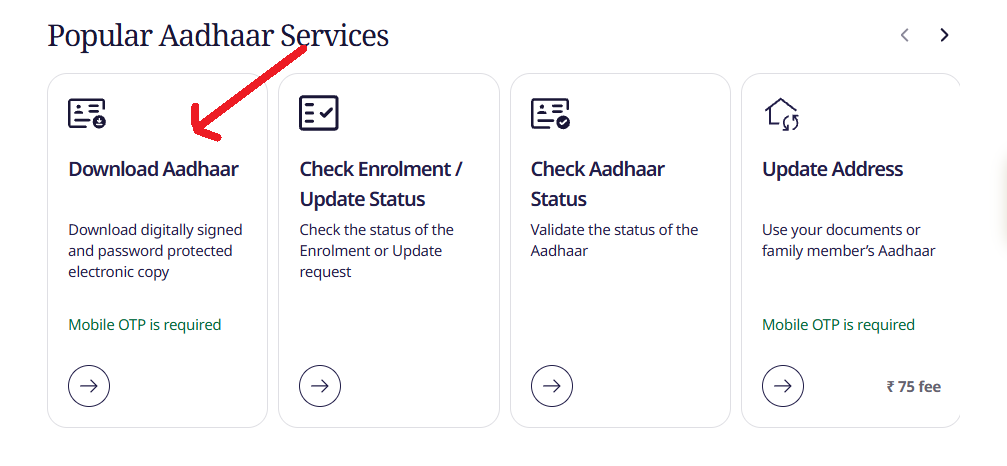
Step 2: Select an Option & Enter Your Details
On the download page, I found four options for getting the e-Aadhaar PDF:
- Aadhaar Number
- VID
- EID
- SID
You can choose the option based on the information you have.
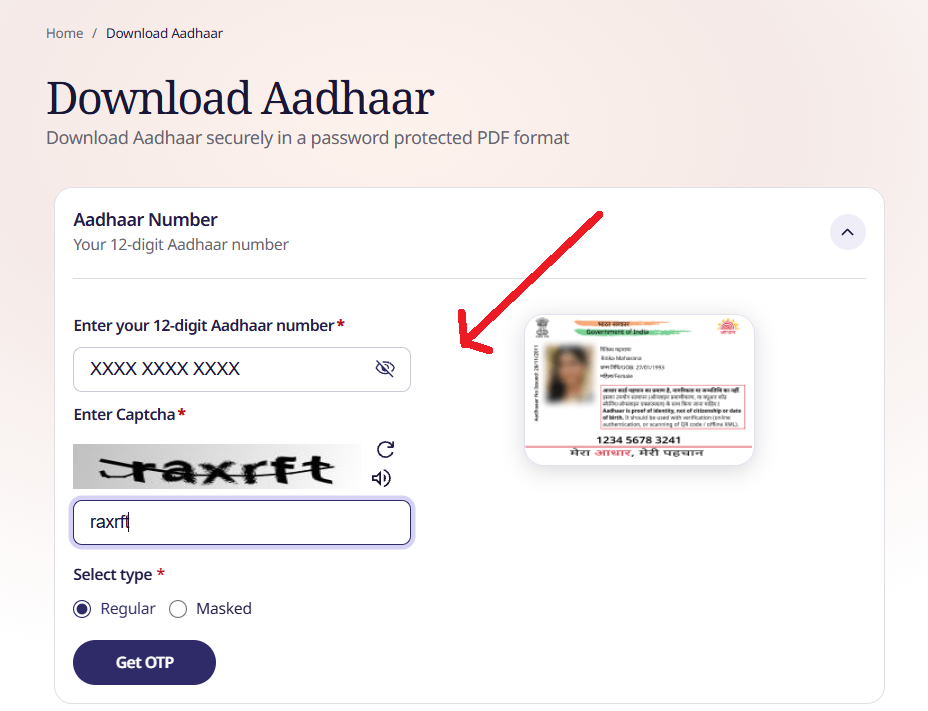
I selected Aadhaar Number because I had my Aadhaar number available. I entered it in the required field and filled in the CAPTCHA.
The page also gave me two choices for the Aadhaar PDF:
- Regular Aadhaar: Shows the full Aadhaar number.
- Masked Aadhaar: Hides the first eight digits and shows only the last four digits.
I selected Regular Aadhaar for my download. Choose the version that suits your purpose, then click Get OTP to continue with verification.
Step 3: Complete OTP Verification
After clicking “Send OTP,” I received the OTP on the mobile number registered with my Aadhaar. I kept my phone nearby, entered the OTP on the UIDAI page, and continued with the download process.
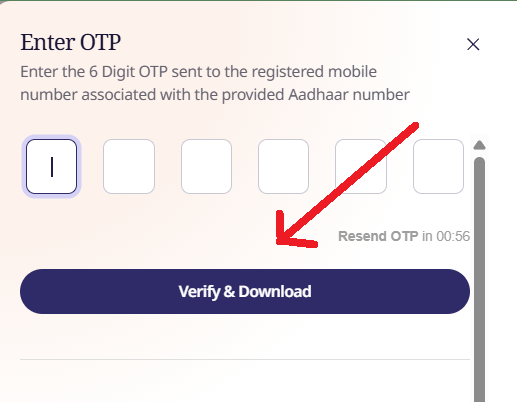
Step 4: Download the e-Aadhaar PDF
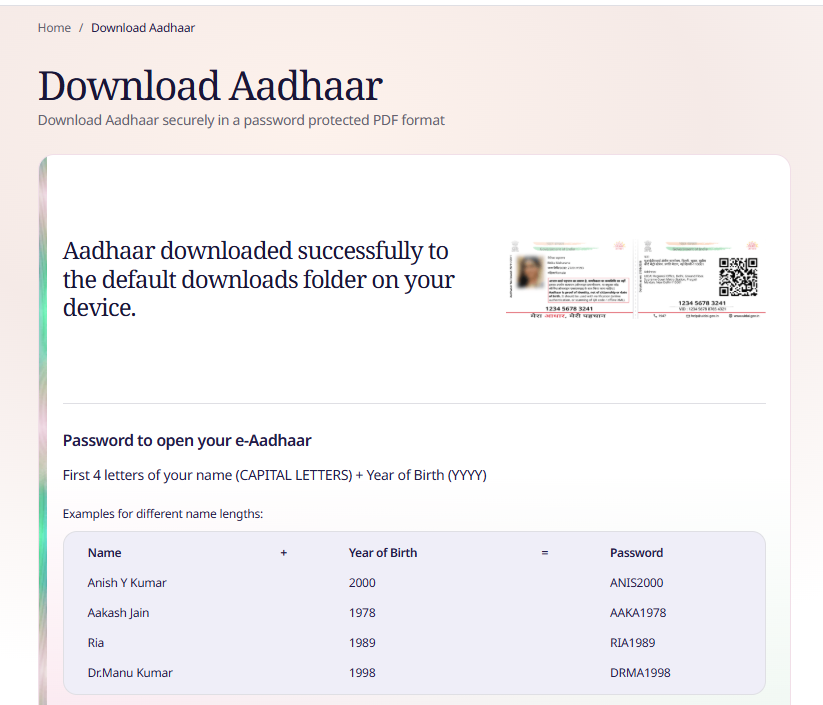
After I entered the OTP and completed the verification, the e-Aadhaar PDF was downloaded successfully. I downloaded the file and saved it on my device so I could access it when needed.
Method 2: Get Aadhaar PDF From DigiLocker
If your Aadhaar is already available in DigiLocker, you can access the digital document from your DigiLocker account. You can also create a DigiLocker account, link your Aadhaar and access the document there.
Step 1: Login Digilocker App OR Website
In my case, I already had a DigiLocker account with my Aadhaar linked, so I didn’t need to link it again. I simply opened the DigiLocker app and logged in to my account.
Step 2: View and Download the Aadhaar PDF
After logging in to the DigiLocker app, I went to Issued Documents, where my Aadhaar Card was already available.
I clicked the three-dot (⋮) menu next to the Aadhaar Card and selected “View PDF.” The Aadhaar PDF then got downloaded to my device.
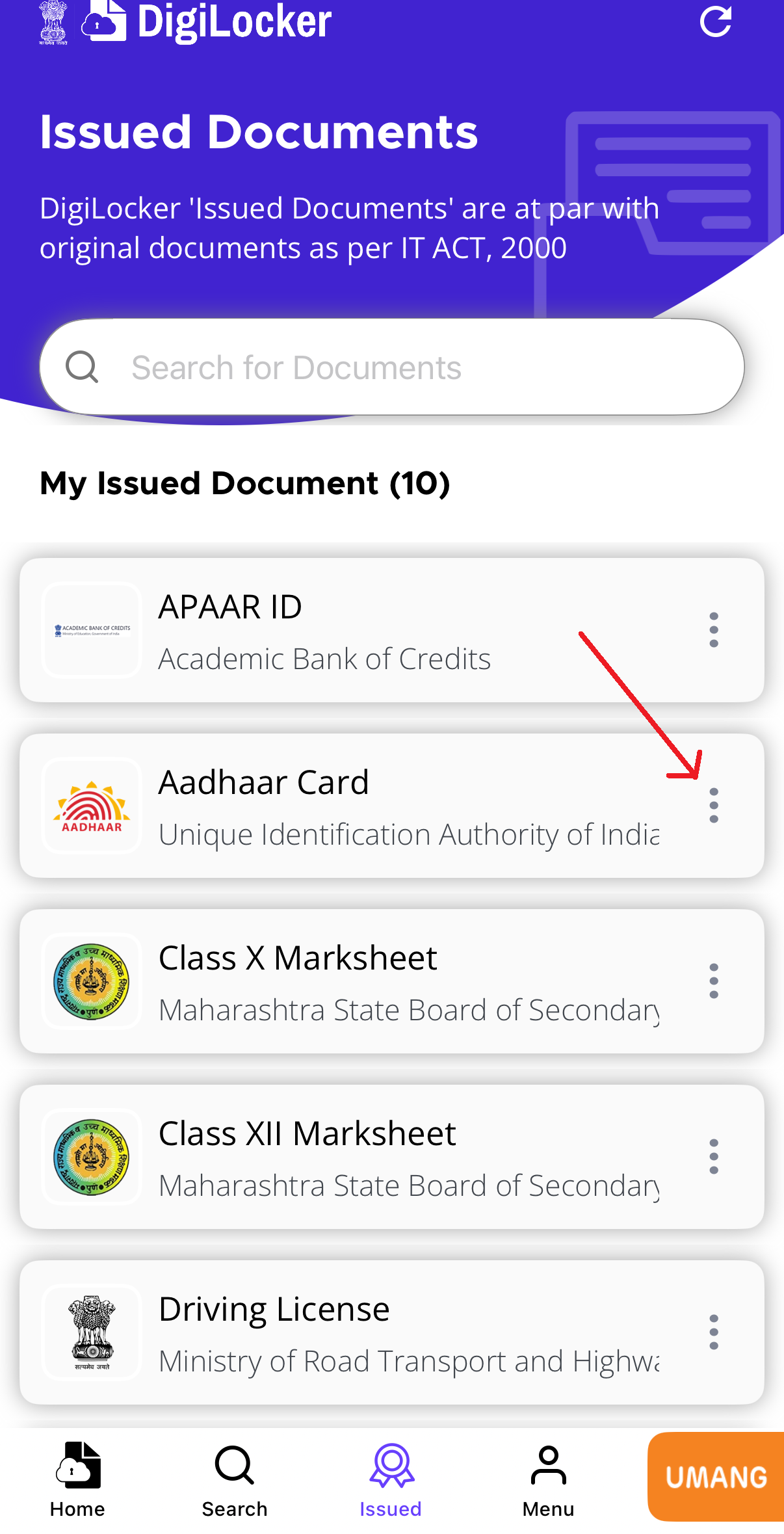
In my case, I didn’t have to search for Aadhaar or link it again because it was already available in my DigiLocker account. I could simply open the Issued Documents section, use the three-dot menu, and download the PDF.
Who should use DigiLocker?
This option is useful if you:
- Already have a DigiLocker account with Aadhaar linked.
- Want to create a DigiLocker account and link your Aadhaar.
- Prefer keeping your digital documents in one place instead of downloading them separately from different websites.
In my case, I didn’t have to search for Aadhaar or link it again because it was already available in my DigiLocker account. I could simply open the Issued Documents section, use the three-dot menu, and download the PDF.
Method 3: Download Aadhaar Using the Aadhaar App
The third way to get your Aadhaar PDF is through the Aadhaar App on your mobile phone. The experience is different from the UIDAI website because the app uses mobile-based verification and facial recognition during the setup and verification process.
Step 1: Install the Aadhaar App
First, install the official Aadhaar App on your smartphone from the official app store. Make sure you are installing the genuine Aadhaar App before entering any Aadhaar details.
Step 2: Keep Your Aadhaar-Linked Mobile With You
For this method, you need your Aadhaar number and the mobile phone with the Aadhaar-linked mobile number.
One important difference I noticed is that this process does not work like the usual OTP-based verification. The app uses SMS-based mobile binding. An SMS is sent from your mobile phone to UIDAI during the verification process.
Therefore, make sure:
- Your Aadhaar-linked mobile number is being used on the phone.
- Your phone can send SMS messages.
- Your SMS service is active.
- You have enough mobile connectivity to complete the verification.
The app also uses facial recognition for Aadhaar user verification. You need to enter your Aadhaar number and complete the verification process shown in the app.
Step 3: View and Download Your Aadhaar PDF
After successfully completing the login and verification process, I opened the Download Aadhaar option in the app.
The app then gave me the option to choose between:
- Masked Aadhaar
- Unmasked Aadhaar
I selected the option based on my requirement and then tapped the Download button.
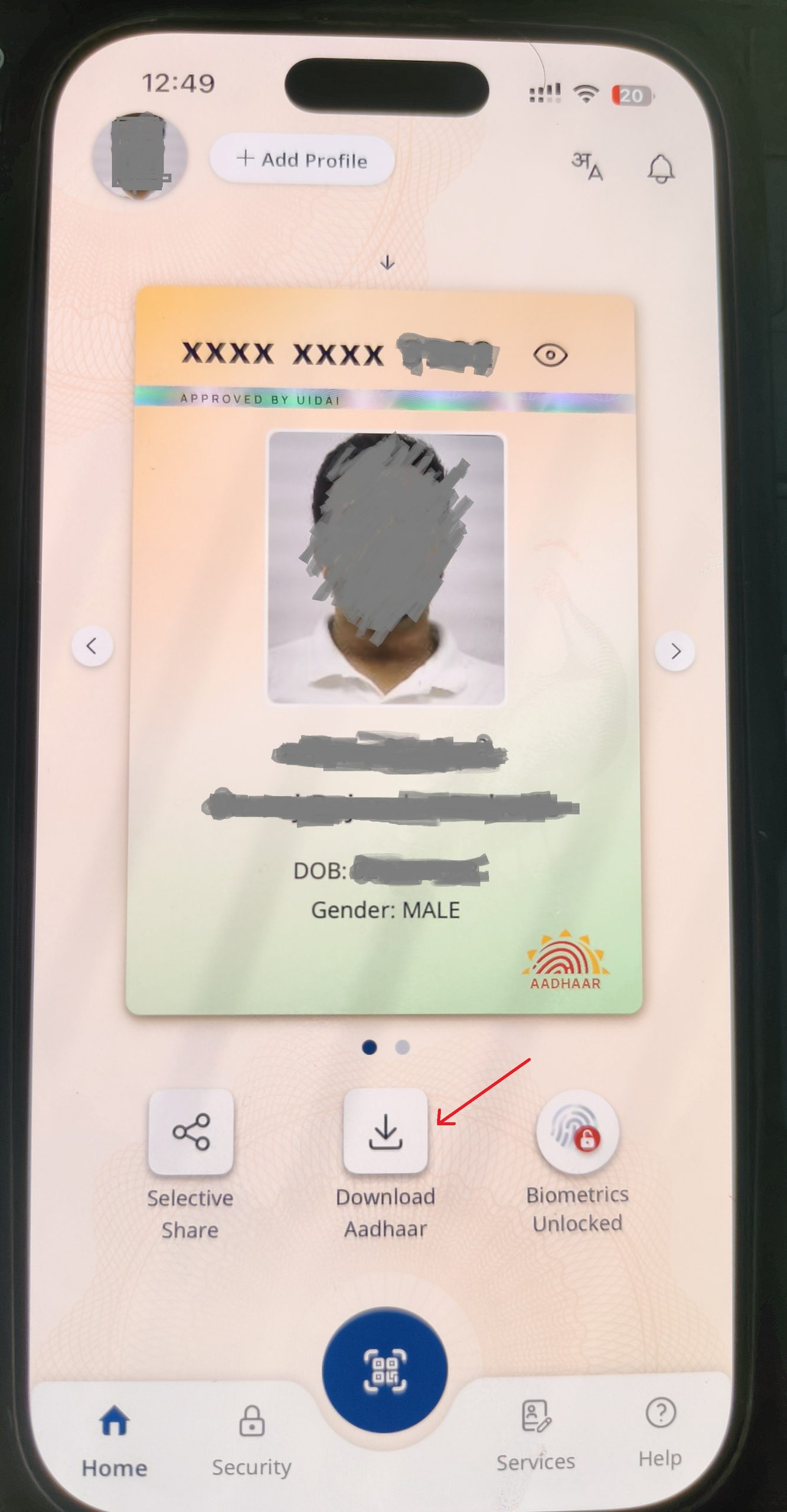
The Aadhaar PDF was then downloaded successfully to my phone.
This method is particularly different from the UIDAI website because the verification happens through the mobile device, SMS-based binding and facial recognition, rather than simply entering an OTP received on the registered mobile number.
e-Aadhaar PDF Password: What to Enter
When you open your downloaded e-Aadhaar PDF, it is password protected. You don’t create this password yourself. It is generated using the name and year of birth recorded in Aadhaar.
PDF not opening?
Check your name exactly as it appears in Aadhaar, including any
punctuation, and make sure the year of birth is correct before
assuming that the downloaded file is faulty.
I Forgot My Aadhaar Number—Here’s What I Did
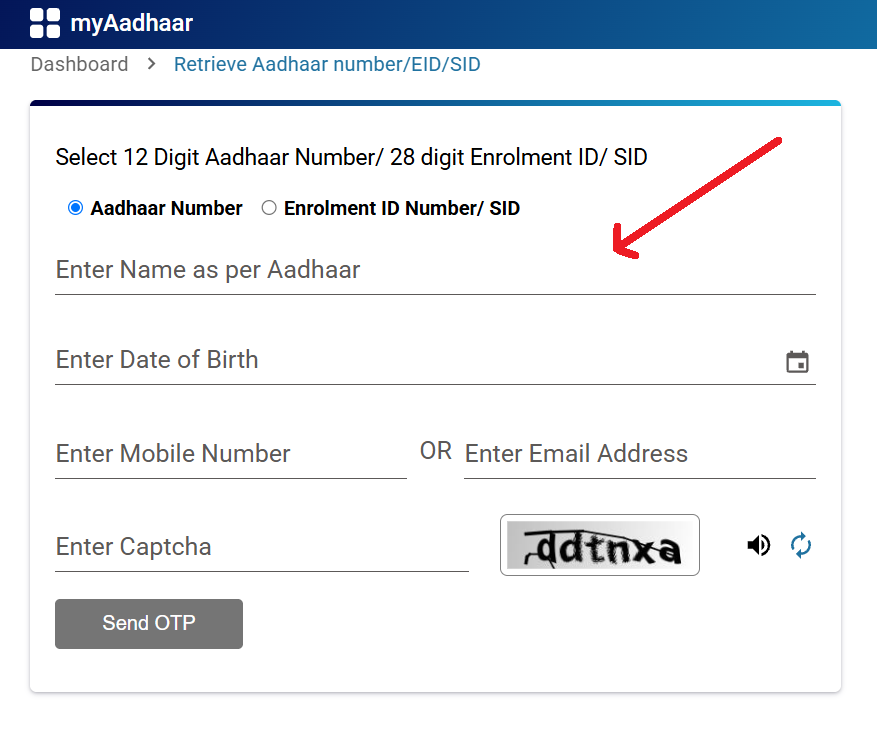
I forgot my Aadhaar number while trying to download my e-Aadhaar, so I first used UIDAI’s Retrieve UID/EID option instead of trying to guess the 12-digit number.
I entered the required details, including my name as it appears on Aadhaar, date of birth, registered mobile number, and the displayed CAPTCHA. I then clicked “Send OTP” and received the OTP on my registered mobile number.
After entering the OTP and completing the verification, I received my Aadhaar number on the registered mobile number. Once I had the number, I went back to the e-Aadhaar download process and continued from there.
Common e-Aadhaar Download Problems
Here are some common issues you may face while downloading e-Aadhaar and what to check before trying again.
1. OTP Does Not Arrive
If you don’t receive the OTP after clicking “Send OTP,” first check whether your mobile has a proper network connection. Also make sure that incoming SMS service is active on your mobile number and that you can receive other messages.
If everything looks fine, wait for a short while before requesting another OTP. Also confirm that you are using the mobile number registered with your Aadhaar.
2. Aadhaar Number Is Forgotten
If you don’t remember your 12-digit Aadhaar number, you may not be able to continue with the normal download process. Use UIDAI’s Retrieve UID/EID facility first and then return to the e-Aadhaar download page.
3. PDF Password Doesn’t Work
Check the name exactly as recorded in Aadhaar and the year of birth you are entering for the password. Pay attention to capital letters, spaces, and punctuation where applicable.
4. Registered Mobile Number Is Not Available
If you no longer have access to the mobile number registered with your Aadhaar, the OTP-based online download process may not work. In this situation, you need to update your mobile number through the offline Aadhaar update process before using OTP-based online services.
5. Recently Enrolled and Don’t Have an Aadhaar Number?
If you have recently enrolled for Aadhaar and don’t have your 12-digit Aadhaar number yet, you can use your Enrolment ID (EID) from the acknowledgement slip to download e-Aadhaar once your Aadhaar is generated.
Getting an Aadhaar PDF does not always require following the same process. In this guide, I tried three different routes based on how the Aadhaar document can be accessed: UIDAI, DigiLocker and the Aadhaar App.
If you have your Aadhaar number and access to the registered mobile number, the UIDAI website provides a direct way to download the PDF. If your Aadhaar is already linked to DigiLocker, you can access it from Issued Documents and download the PDF from there. The Aadhaar App provides another mobile-based option, with its own verification process.
In my case, DigiLocker was the simplest because my Aadhaar was already linked there. However, the right option depends on what you already have available.
If you only need the PDF once, choose the method that matches your current situation rather than going through unnecessary steps.

Manoj Dehade is an independent blogger with experience in content writing and SEO. He writes about government schemes, services, and useful online resources with the aim of making the internet a better and more useful place.